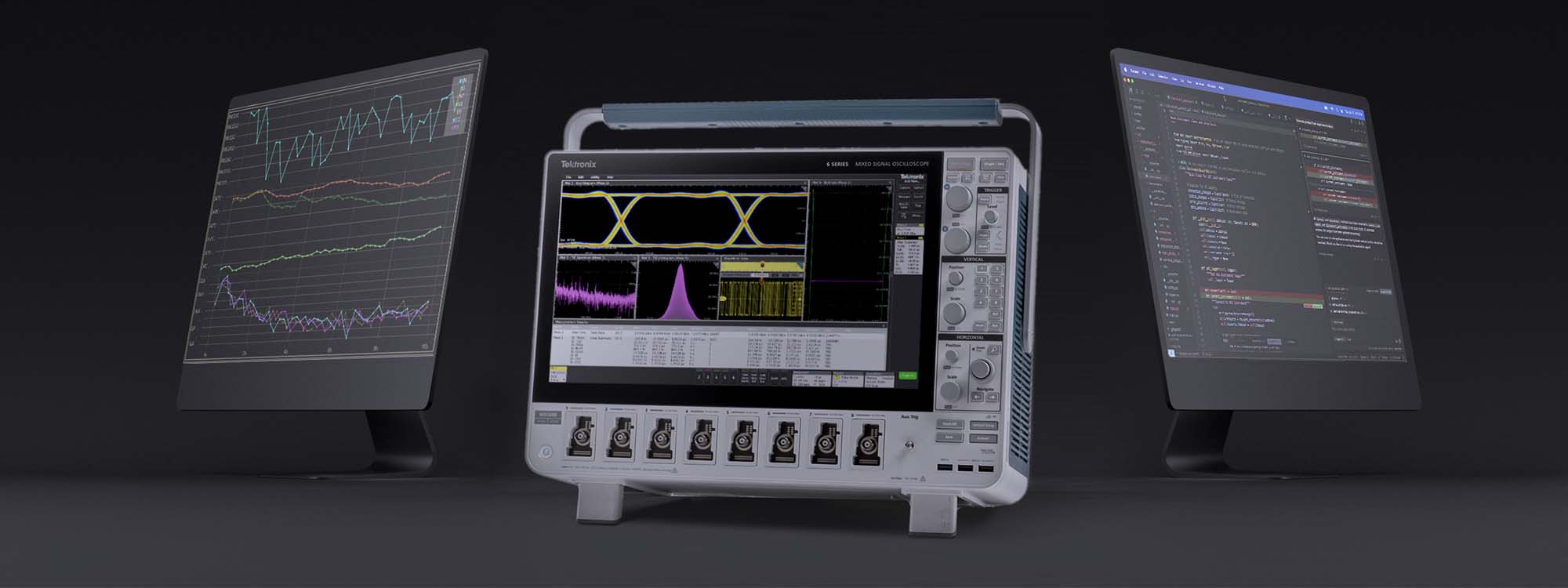
Get 5x Faster Waveform Transfer from Oscilloscope to PC with TekHSI
Tektronix high-speed interface is changing the game with reliable and fast data transfer, especially for large data sets.
Enhance Productivity with HSI
Engineers across many industries use automation to extend the capabilities of their oscilloscopes, and many engineers are using Python. The free programming language Python has significant advantages for automation:
There are two main use cases for automation:
This technical brief will cover what you need to get started programming scopes in Python, including the basics of programmatic interfaces and how to download and run an example.
A programmatic interface (PI) is a boundary or set of boundaries between two computing systems that can be programmed to execute specific behaviors. For our purposes, it’s the bridge between the computer that runs in every piece of Tektronix test equipment and the application written by the end user. To narrow this even further, it is a set of commands that can be sent remotely to an oscilloscope and the system on that oscilloscope that processes and executes them.
The PI Stack (Figure 1) shows the flow of information from the host controller down to the instrument. The application code written by the end user defines the behavior of the target instrument. This is usually written in one of the development platforms popular in the industry, such as Python, MATLAB, LabVIEW, C++, or C#.
This application will send SCPI commands, which are the standard format for almost all test and measurement equipment, to the VISA layer. In some cases, the application will call a driver, which will then send one or more SCPI commands to the VISA layer.

Figure 1. The programmatic interface (PI) stack shows the flow of information between a host controller and instrument
The VISA layer negotiates the connection with the instrument over either the USB or LAN interface. VISA opens and closes the remote session with the instrument, writes and reads data on the bus, and maintains the health of the connection with synchronization, flushing and other miscellaneous functions. This layer abstracts a lot of the technical minutia required for communication, like resource addresses and buffer management.
The instrument will then read and write information directly on the USB or LAN interface. Depending on what commands are issued, it may change settings in the scope application or provide the response to a query.
All of the systems above the physical communication interface are also mirrored in the scope, but we can consider it a "black box" since we can’t modify those systems. Each major instrument vendor provides an implementation of the VISA standard to use with their products. All of the basic functionality is included in the standard requirements, so any vendor's VISA should work well enough to control an instrument.
To get started quickly, you should install a few development tools on your PC:
py -m pip install pyvisaTo demonstrate running a Python program, we are using a file on the Tektronix GitHub page at https://github.com/tektronix/Programmatic-Control-Examples under Oscilloscopes – Touchscreen Oscilloscopes & High Speed Digitizers. The program is called SimplePlotExample.

Figure 2. Saving source code from GitHub, using the Chrome web browser.

Figure 3. Incorrect VISA Address.
The first thing to do when using any example script is to look at the VISA address, which is the network name that tells VISA where to find the instrument. This example code specifies a USB address, which means the user would need to have the exact same oscilloscope connected to his or her PC as the author of this script did when it was written and published it to GitHub.
To correct the VISA address, open NI MAX, which was installed as part of NI-VISA. NI MAX will allow the user to connect to oscilloscopes, troubleshoot those connections, and send single individual commands as needed.
For this example, we are using a LAN connection. In Figure 4, you can see any oscilloscopes on the network in the tree structure on the left. The instrument at address 192.168.1.17 is a 4 Series Mixed Signal Oscilloscope, which will be used as an example for this technical brief. (You will see a different address for a different oscilloscope on your network.)
Take the VISA resource name from NI-VISA and paste it into the program, then run the code again.

Figure 4. Using NI MAX to determine the correct VISA resource name.

Figure 5. The Simple Plot example program prompts the user to connect a probe.
The example code now runs correctly. It pauses for a moment to ask the user to install a probe on Channel 1 and connect it to the probe compensation signal on the oscilloscope.
After connecting the probe, hit Enter to continue. This results in a scope trace on the PC.

Figure 6. The Simple Plot example will transfer a waveform from the oscilloscope and plot it on the PC.
Standard Commands for Programmable Instruments (SCPI) instructions are used to change settings and get measurements from instruments. A versatile instrument, such as an oscilloscope, may support hundreds of commands. The general syntax of SCPI commands is very similar among various manufacturers and instruments, making it easier to communicate with different instruments. Most SCPI commands have a “set” form for changing settings, and a "query" form for getting information back from the instrument. The precise syntax for a given instrument is typically documented in a Programmer Manual, which is generally available on the instrument manufacturer’s website. The programmatic interface manual for the 4, 5 and 6 Series MSOs is a good example.
A comprehensive description of SCPI commands is beyond the scope of this technical brief, but there are several commands that you should get to know right away:
It is common for developers to copy and paste code from examples; this not only saves time but also helps them learn along the way. Browse the code examples on the Tektronix Github for finished solutions and inspiration!
Python is one of the preferred software environments to use automation to extend the capabilities of an oscilloscope due to the portability, ease of use and scalability it offers. If you have repetitive or complex tasks to perform with your oscilloscope, using Python and starting with pre-written example programs can provide a quick path to a solution.
Find more valuable resources at TEK.COM

Tektronix high-speed interface is changing the game with reliable and fast data transfer, especially for large data sets.
Enhance Productivity with HSIWatch this short video to learn how to connect your PC to your oscilloscope using tm_devices.
Connect with tm_devices
Read this blog to learn how to use TSP Toolkit's debugging features.
Learn about TSP Toolkit
Use Python's pip install command to download and install Tektronix Python packages and easily add functionality to your Python environment.
                      pip install tm_devices
                      pip install tm_data_types
                      pip install tekHSI
TSP can do everything SCPI can — and everything SCPI can't. Use TSP for instrument control and automation or select SMUs, PSUs, DAQs, Switches and DMMs.
Getting Started GuidesGet started with TekVISA to automate measurements, remotely control instruments, and communicate with Tektronix equipment in test and lab environments.
Getting Started GuidesUse TekHSI™ Python Package to unlock faster data transfer from oscilloscope to PC.
Getting Started GuidesExplore our growing ecosystem of Python tools to unlock higher productivity and innovation in your testing process.
Getting Started GuidesControl and automate Tektronix instruments using C# with seamless integration through TekVISA and SCPI commands.
Getting Started GuidesControl and automate Tektronix instruments using C# with seamless integration through TekVISA and SCPI commands.
Getting Started GuidesControl and automate Tektronix instruments using C# with seamless integration through TekVISA and SCPI commands.
Getting Started Guides
Find examples like 'save on trigger', 'fetch waveform data' and more, organized by instrument.
Explore example code for working with your instrument over a remote interface.
GitHub - MP5000 Examples
GitHub - Programmatic Control Examples
Explore examples of common instrument control and automation tasks.
Jump start with examples of connecting, configuring, and setting up measurements.
GitHub - MP5000 Examples
GitHub - Programmatic Control Examples
Find examples like 'save on trigger', 'fetch waveform data' and more, organized by instrument.
Explore example code for working with your instrument over a remote interface.
GitHub - MP5000 Examples
GitHub - Programmatic Control Examples
Use Python's pip install command to download and install Tektronix Python packages and easily add functionality to your Python environment.
              pip install tm_devices
              pip install tm_data_types
              pip install tekHSI
              from tm_devices import DeviceManager
              from tm_devices.drivers import MSO5B
Use Python to automate measurements, control instruments, and process test data efficiently.
Request help or tell us what resources you’d like to see.
tm_data_types (beta)
Python package that provides tools to convert CSV, WFM, and BIN format into a waveform object, add or edit waveform metadata, and write a valid waveform object to a file.
Use Python to automate measurements, control instruments, and process test data efficiently.
Request help or tell us what resources you’d like to see.
tm_devices
A device management package that enhances control of Test & Measurement devices in Python scripts by providing access to device drivers through a complete Python API.
Use Python to automate measurements, control instruments, and process test data efficiently.
Request help or tell us what resources you’d like to see.
Python package that provides tools to convert CSV, WFM, and BIN format into a waveform object, add or edit waveform metadata, and write a valid waveform object to a file.
TekHSI
A Python library for fast, low-latency data transfer between Tektronix scopes and other devices, ideal for real-time data acquisition and analysis. TekHSI supports any gRPC-compatible platform, including Windows, Linux, and macOS.
Use Python to automate measurements, control instruments, and process test data efficiently.
Request help or tell us what resources you’d like to see.
tm_devices
A device management package that enhances control of Test & Measurement devices in Python scripts by providing access to device drivers through a complete Python API.
Use Python to automate measurements, control instruments, and process test data efficiently.
Request help or tell us what resources you’d like to see.
tm_data_types (beta)
Python package that provides tools to convert CSV, WFM, and BIN format into a waveform object, add or edit waveform metadata, and write a valid waveform object to a file.
Use Python to automate measurements, control instruments, and process test data efficiently.
Request help or tell us what resources you’d like to see.
tm_devices
A device management package that enhances control of Test & Measurement devices in Python scripts by providing access to device drivers through a complete Python API.
Use Python to automate measurements, control instruments, and process test data efficiently.
Request help or tell us what resources you’d like to see.
Python package that provides tools to convert CSV, WFM, and BIN format into a waveform object, add or edit waveform metadata, and write a valid waveform object to a file.
TekHSI
A Python library for fast, low-latency data transfer between Tektronix scopes and other devices, ideal for real-time data acquisition and analysis. TekHSI supports any gRPC-compatible platform, including Windows, Linux, and macOS.
Use Python to automate measurements, control instruments, and process test data efficiently.
Request help or tell us what resources you’d like to see.
tm_devices
A device management package that enhances control of Test & Measurement devices in Python scripts by providing access to device drivers through a complete Python API.
And then when we use the device manager and driver together:
        pip install tm_devices
        pip install tm_data_types
        pip install tekHSI
scope :MSO5B= device_manager.add_scope ("192.168.1.1")
        from tm_devices import DeviceManager
        from tm_devices.drivers import MSO5B
with DeviceManager (verbose=True) as device_manager:
We can instantiate an instrument with a specific command set that matches its model. Just input your instrument’s IP address (other VISA addresses work as well).
With these four lines complete, we are able to start writing meaningful and specific automation for the MSO5B!
Let’s take a look at a few simple actions -
Setting the Trigger type to Edge
# Setting Trigger A to Edge
scope.commands.trigger.a.type.write ("EDGE")
Here’s how you would add and query a peak-to-peak measurement on CH1:
# Specifying source as Channel 1
scope.commands.display.select.source.write("CH1")
# Identifying pk2pk as the measurement we would like to make
scope.commands.measurement.addmeas.write('PK2Pk' )
# Make sure the operation is complete using the opc command
scope.commands.opc.query()
# Store the value locally before we print
chipk2pk = float(scope.commands.measurement.meas[1].results.allacqs.mean.query())
# Printing the value onto the console
print(f 'Channel 1 pk2pk: {ch1pk2pk}')
If you wanted to take an amplitude measurement on CH2:
# Specifying source as channel 2
scope.commands.display.select.source.write("CH2")
# Identifying amplitude as the measurement we would like to make
scope.commands.measurement.addmeas.write('AMPLITUDE')
# Make sure the operation is complete using the opc command
scope.commands.opc.query()
# Store the value locally before we print
champ = float(scope.commands.measurement.meas[2].results.allacqs.mean.query())
# Print the value onto the console
print(f' amplitude: {ch2amp}')
IntelliSense – Microsoft’s name for Code Completion is a very powerful feature of IDE’s we have tried to exploit as much as possible.
One of the core barriers to automation with test and measurement devices is the SCPI command set. It is a dated structure with syntax not widely supported in the development community.
What we have done with tm_devices is create a set of Python commands for each SCPI command. This allowed us to generate Python code from existing command syntax to avoid manual development of the drivers, as well as create a structure that is familiar to existing SCPI users. It also maps to the lower-level code that might require intentional debugging during your program creation. The structure of the Python commands mimics the SCPI (or in some Keithley cases TSP) commands structure so if you are familiar with SCPI you will be familiar with these.
This is an example of how IntelliSense shows all the commands available with the previously typed command:
In the scrollable list that appears after the dot on scope we can see an alphabetical list of scope command categories:

Choosing afg we are able to then see a list of AFG categories:

Final command written with the help of IntelliSense:
scope.commands.afg.amplitude.write(10e6)
As you code, or as you are reading someone else’s code, you can hover over different parts of the syntax to get that level’s specific help documentation. The closer you are to the full command syntax the more specific it will get.

Depending on your IDE conditions you can display both IntelliSense and docstring help at the same time.


With this guide you have seen some of the benefits of Tek’s python driver package tm_devices and can start your automation journey. With the easy setup, code completion, and built-in help you will be able to learn without leaving your IDE, speed up your development time, and code with higher confidence.
There are contribution guidelines in the Github repo if you wish to improve the package. There are plenty of more advanced examples highlighted in the documentation and within the package contents in the Examples folder.
tm_devices · PyPI – Package driver download and information
tm_devices Github - Source code, issue tracking, contribution
tm_devices Github - Online Documentation
Upgrading pip is usually a good first step to troubleshooting:
In your terminal type:
Python.exe -m pip install -upgrade pip
Error: whl looks like a filename, but file does not exist OR .whl is not a supported wheel on this platform.

Solution: Pip installing wheel so that it recognizes the file format.
In your terminal type: pip install wheel
If you are needing to install wheel offline you can follow similar instructions as Appendix A, but it requires the tar.gz download instead of the .whl file.
1. On a computer with internet, download the package along with all dependencies to the specified path location using:
2. Copy the files to your computer that does not have internet access
3. Then, follow the instructions from the main guide for whichever IDE you are using but swap the install command for the following:
TSP can do everything SCPI can — and everything SCPI can't. Use TSP for instrument control and automation or select SMUs, PSUs, DAQs, Switches and DMMs.
Getting Started GuidesGet started with TekVISA to automate measurements, remotely control instruments, and communicate with Tektronix equipment in test and lab environments.
Getting Started GuidesUse TekHSI™ Python Package to unlock faster data transfer from oscilloscope to PC.
Getting Started GuidesExplore our growing ecosystem of Python tools to unlock higher productivity and innovation in your testing process.
Getting Started GuidesControl and automate Tektronix instruments using C# with seamless integration through TekVISA and SCPI commands.
Getting Started GuidesControl and automate Tektronix instruments using C# with seamless integration through TekVISA and SCPI commands.
Getting Started GuidesControl and automate Tektronix instruments using C# with seamless integration through TekVISA and SCPI commands.
Getting Started GuidesSee all automation tools from Tektronix
Tektronix high-speed interface is changing the game with reliable and fast data transfer, especially for large data sets.
Enhance Productivity with HSIWatch this short video to learn how to connect your PC to your oscilloscope using tm_devices.
Connect with tm_devices
Read this blog to learn how to use TSP Toolkit's debugging features.
Learn about TSP Toolkit